Search
Rednal provides powerful search capabilities across your entire digital collection, enabling users to find items by metadata fields or by the actual text content of scanned documents. Search is available from the homepage hero, the global search bar in the navigation, and within individual document viewers.
Search Modes
Rednal supports two distinct search modes, selectable via radio buttons beneath the search input:
Metadata Search
Metadata search queries structured fields attached to each item in the collection. These fields follow Dublin Core and custom schema standards and include:
- Creator — the author or originator of the document
- Contributor — additional people associated with the item
- Date — the date the item was created or published
- Collection — the archival collection the item belongs to
- Type — the format of the item (Text, Image, Map, etc.)
- Language — the language of the content
- Call number — the archival identifier or catalog number
- Coverage — geographic or temporal coverage of the item
Metadata search is useful when you know specific details about what you are looking for, such as a particular correspondent, date range, or collection.
Text Content Search (OCR)
Text content search queries the full text extracted from scanned document images via OCR (Optical Character Recognition). This allows users to find specific words or phrases that appear within the actual pages of digitized items, even when those terms are not present in the item's metadata.
When text content search is selected, Rednal searches across all OCR-processed text in the collection. Results display the matching term highlighted in context, along with a thumbnail of the page where the match was found.
Word Matching Options
A dropdown selector allows users to control how multiple search terms are matched:
- Any Word — returns results containing at least one of the entered terms (OR logic)
- All Words — returns only results containing every entered term (AND logic)
- Exact Phrase — returns results containing the exact sequence of words entered
These options apply to both metadata and text content search modes.
Homepage Search
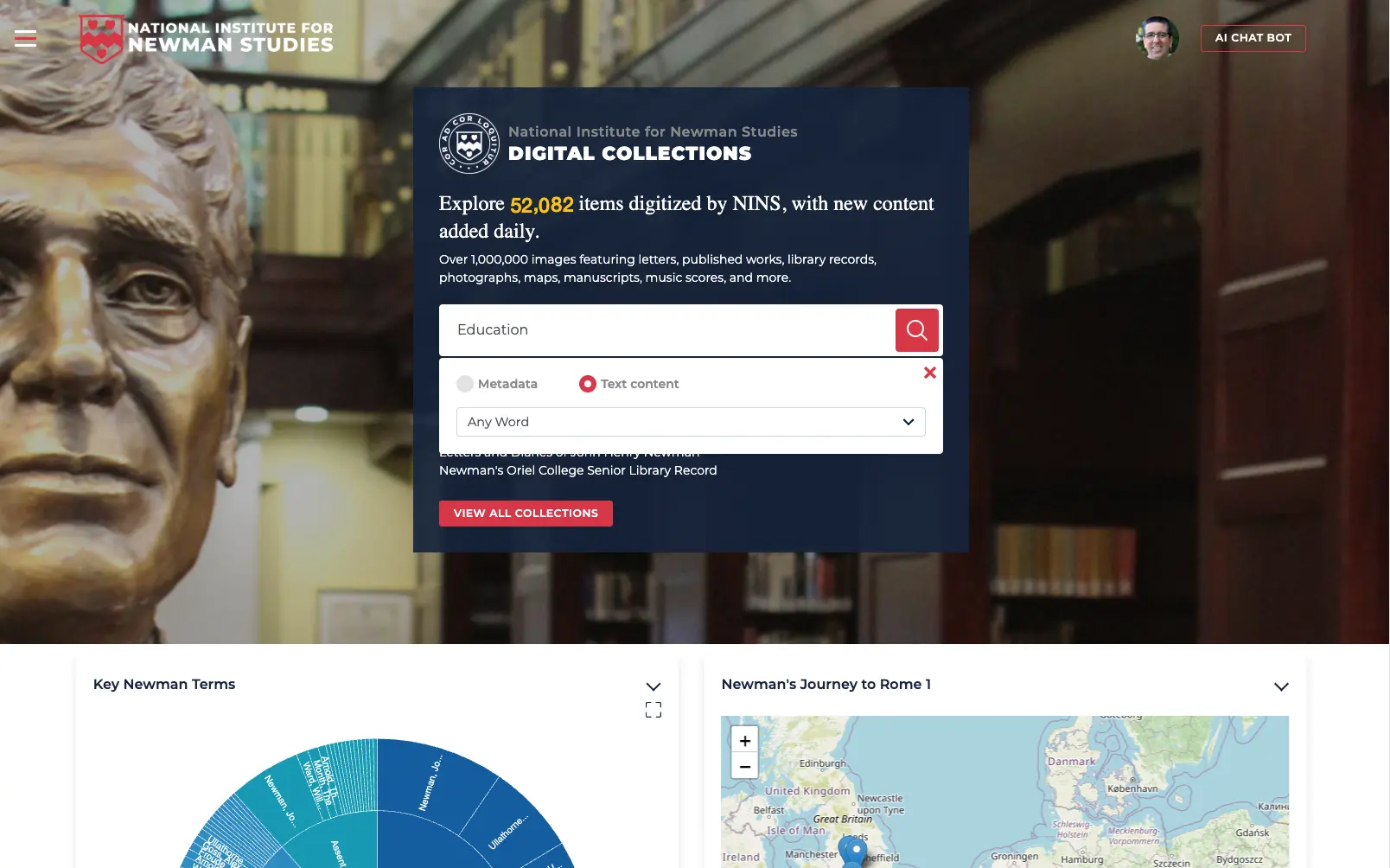
The homepage features a prominent search interface within the hero section. This provides the same search functionality as the global search bar but with additional visibility and context for first-time users.
The homepage search includes:
- A large search input field
- Metadata / Text content toggle
- Word matching dropdown (Any Word, All Words, Exact Phrase)
- A close button to dismiss the expanded search options
Below the search hero, the homepage also displays interactive visualizations such as key term word clouds and geographic maps showing locations referenced in the collection.
Global Search Bar
The global search bar appears in the top navigation on every page. It provides quick access to search from anywhere in the application. Entering a query and pressing the search button navigates to the Search Results page.
Search Results Page
Results Layout
The search results page uses a two-panel layout:
- Left panel — faceted filters for narrowing results
- Main panel — search results list with metadata and thumbnails
Result Cards
Each search result is displayed as a card containing:
- A thumbnail image of the item or page
- The item title (linked to the full item view)
- A snippet showing the matched search term highlighted in context
- The number of results found across pages within that item
- Key metadata fields: Collection, Creator, Contributor, Date, and Description
When searching text content, the matched term is highlighted with a yellow background in both the snippet preview and the page image viewer.
Sorting
Results can be sorted using a dropdown at the top of the results list. Available sort options include:
- Default — relevance-based ranking
- Date (ascending) — oldest items first
- Date (descending) — newest items first
- Title (A–Z) — alphabetical by title
Results by Date
A collapsible "Results by Date" panel at the top of the results area provides a chronological overview of matching items, allowing users to quickly identify clusters of results in specific time periods.
Saving Searches
The Save Search button in the top-right corner of the results page allows authenticated users to save their current search query and filters for later reuse. Saved searches can be accessed from the user's profile.
Faceted Filters
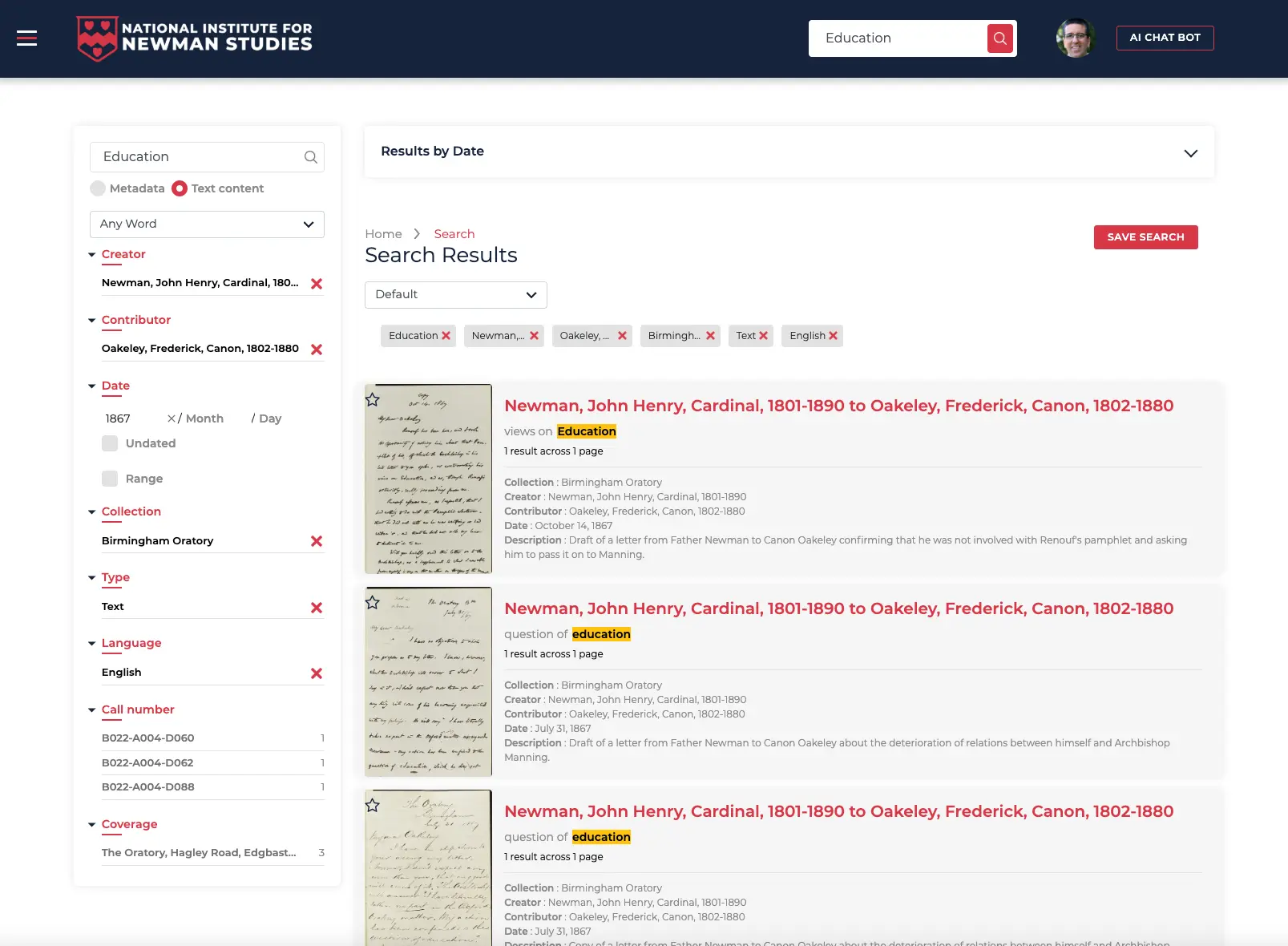
The left panel on the search results page provides faceted filtering to narrow results by specific metadata fields. Each facet is collapsible and displays the available values along with result counts.
Available Facets
Creator
Filter by the creator or author of items. Displays the creator name and allows selection to narrow results to only items by that creator.
Contributor
Filter by contributors — people associated with the item who are not the primary creator. This is useful for finding correspondence involving specific individuals.
Date
The date facet provides multiple filtering options:
- Specific year — enter a year to filter to that year only
- Month/Day — optionally narrow to a specific month or day
- Undated — checkbox to include items without a date
- Range — checkbox to enable date range filtering with start and end dates
Collection
Filter by the archival collection an item belongs to. This is particularly useful when working with materials from a specific repository or archive.
Type
Filter by item type, such as Text, Image, Map, Music Score, or Photograph.
Language
Filter by the language of the item content.
Call Number
Filter by archival call number or catalog identifier. Each call number shows the count of matching items.
Coverage
Filter by geographic or temporal coverage metadata associated with items.
Using Filters
- Click a facet heading to expand or collapse it
- Click a value within a facet to apply it as a filter
- Applied filters appear as removable chips/tags at the top of the results list
- Click the X on a chip to remove that filter
- Multiple filters can be applied simultaneously across different facets
- The clear button in the search panel removes all applied filters
Document Viewer Search
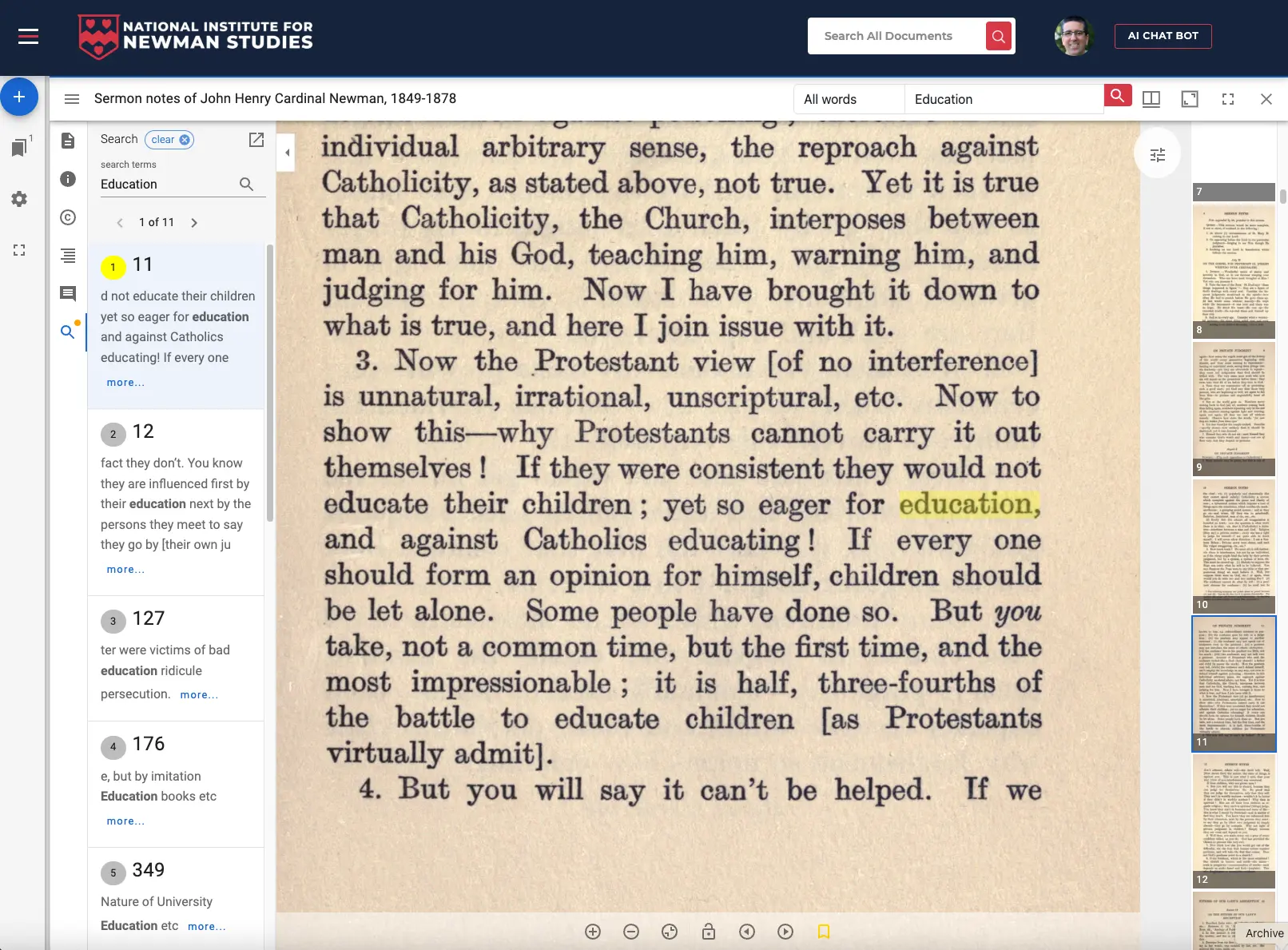
When viewing an individual document, the built-in viewer includes its own search functionality. This allows users to search within the pages of a specific item.
Viewer Search Panel
The search panel in the document viewer provides:
- A search input field for entering terms
- Result count with pagination (e.g., "1 of 11")
- Navigation arrows to move between results
- A list of matching pages with page numbers and text snippets
Search Result Highlighting
When a search term is found within a document:
- The matching term is highlighted with a yellow/gold background directly on the page image
- The left panel shows a list of all pages containing matches
- Each result entry displays the page number and a text snippet with the matched term in bold
- A "more..." link expands the snippet to show additional context
Viewer Search Controls
The document viewer search integrates with the viewer's other tools:
- Page thumbnails — the right sidebar shows thumbnail previews of all pages, allowing quick visual navigation
- Zoom controls — zoom in/out buttons at the bottom of the viewer
- Page navigation — forward/back arrows to move between pages
- Download — save the current page or document
- Full screen — expand the viewer to fill the browser window
- Rotation — rotate the page image if needed
Search Architecture
Rednal's search is powered by a combination of technologies:
Full-Text Search Engine
Search indexing is handled by Elasticsearch, providing fast, typo-tolerant full-text search across both metadata and OCR text. Elasticsearch handles:
- Tokenization and stemming
- Typo tolerance
- Faceted filtering
- Relevance ranking
OCR Pipeline
Text content for search is generated through Rednal's OCR pipeline:
- High-resolution page images are processed through AI-powered OCR
- Extracted text is associated with page coordinates for highlighting
- Text is indexed in Elasticsearch alongside item metadata
- Search results can link directly to the specific page and location of a match
IIIF Integration
Search results integrate with the IIIF image server to provide:
- Thumbnail previews in search results
- High-resolution page viewing from search results
- Coordinate-based highlighting of search terms on page images
- Deep zoom into specific regions of matching pages